

When an automation of Decisions is set to Suggest, the autopilot does not change anything in the chat. It shows you what it would do, right above the message box, and waits for someone on your team to decide. In Automatic it does the change itself, and you can still undo it for 24 hours.
The suggestion in the chat
Open a chat. When the autopilot has a suggestion for it, a card appears above the message box.
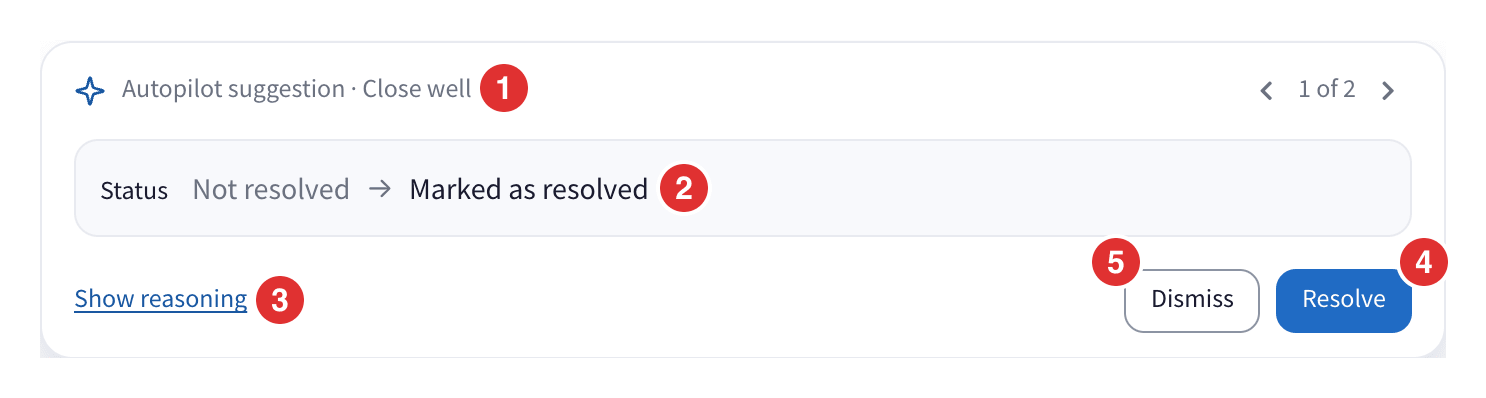
- Autopilot suggestion and the automation that suggests it. When there are several, use the arrows to go through them.
- What will change, in words, for example Add the label Invoice, and the value before and after.
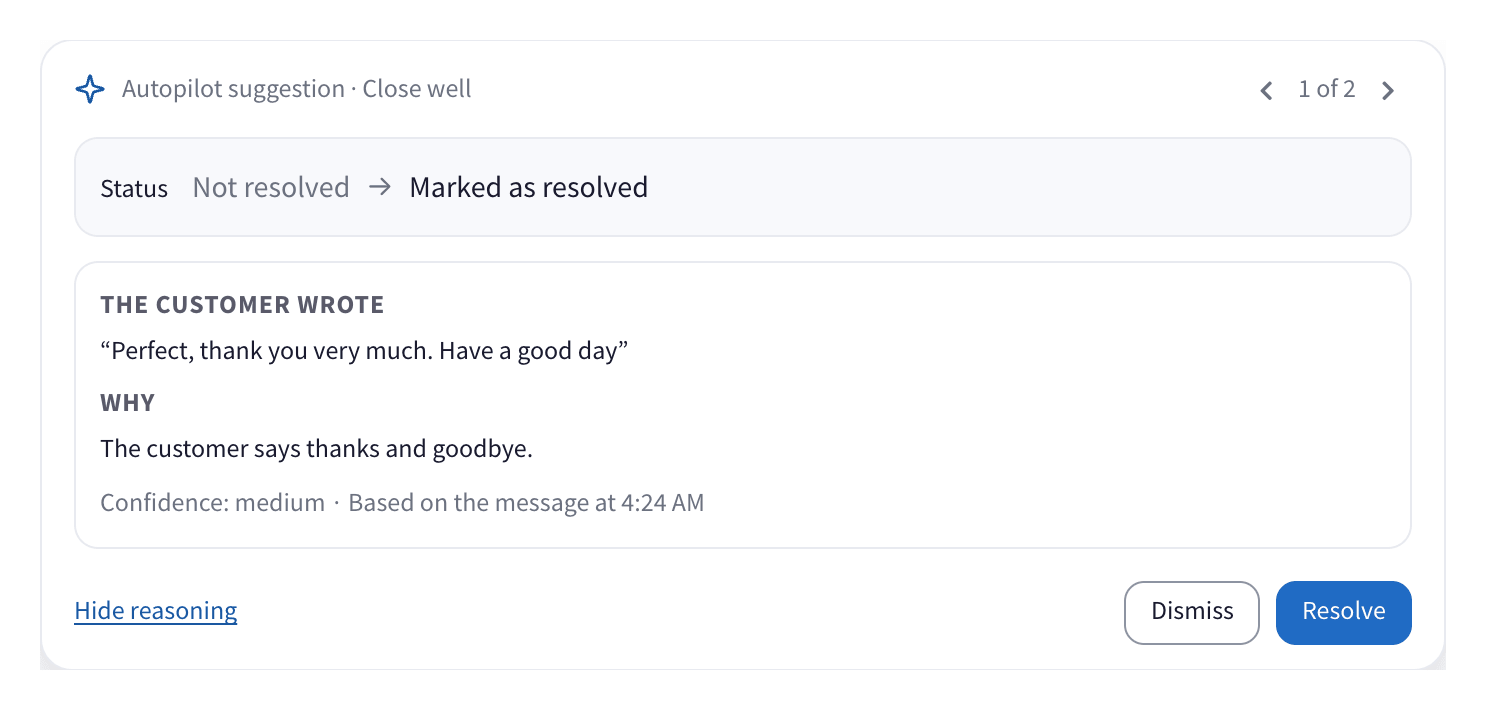
- Show reasoning shows why: the customer's words it relied on, its reason, and how sure it is (Confidence: high or Confidence: medium).
- The button that applies it. It says what it does: Add label, Assign, Resolve, Insert reply, Add note, Create deal, Fill fields, or Apply when it does several things.
- Dismiss if it is wrong. When the suggestion is to take a label off, this button reads Keep label.
While you type a reply, the card folds into one line so it does not get in your way. Click it to open it again.
Who sees it. Anyone who can read the chat and is allowed to do everything the suggestion proposes. Someone who cannot label chats does not get a labelling suggestion.
Apply or dismiss it
- Apply. Click the button. The change is made as if you had made it yourself.
- Dismiss. The suggestion goes away, and the autopilot does not suggest the same thing in that chat again.
A few suggestions ask once more before they act:
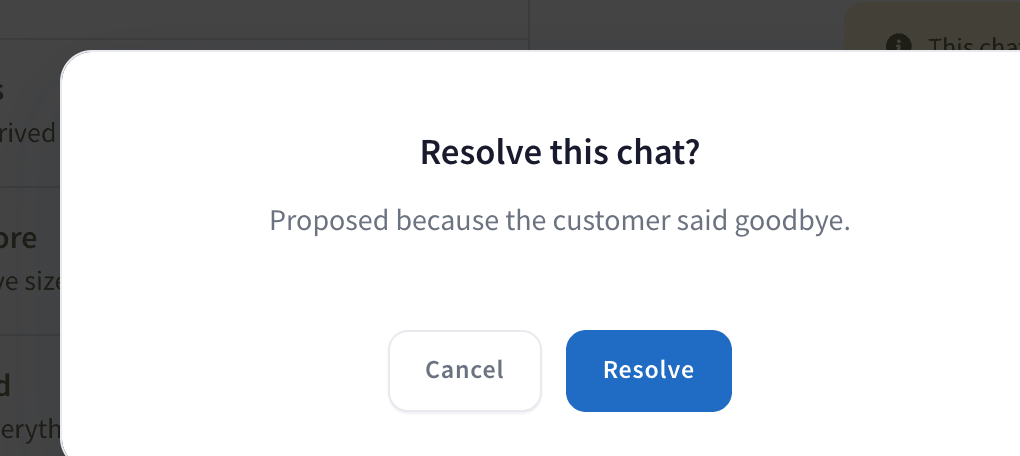
- Resolve. You see why it is proposed, for example Proposed because the customer said goodbye. Click Resolve or Cancel.
- Insert reply. The draft goes into the message box. It is never sent on its own: read it, change it if you want, and send it yourself, or delete it.
If a suggestion is already out of date, for example because the customer wrote again or someone did it by hand, it tells you so and disappears.
What it did on its own, and how to undo it
In Automatic, each change appears in the conversation as a line signed by The autopilot, for example "The autopilot added the label Order". The line has an Undo button for 24 hours.
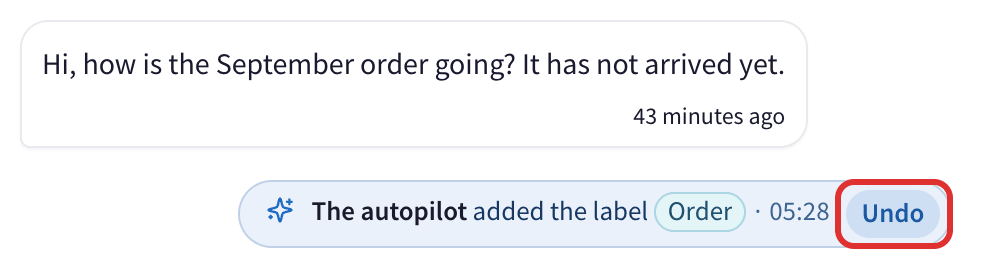
Click Undo and the change is reversed: the label comes off, the field is emptied, the chat reopens and goes back to whoever had it. If someone changed the same thing afterwards, their change stays as it is.
If the autopilot keeps getting something wrong, open the history, undo it there and click Stop doing it automatically: that automation goes back to Suggest.
Questions
Does the autopilot ever send a message to my customer? No. Nothing is sent to your customer, in any mode. A reply draft only goes into the message box.
I accepted a suggestion and it says part of it could not be done. Something changed in between, for example the label was deleted. Do that part by hand. The history keeps it under Needs action until someone marks it as done.
Can I see the suggestions without opening every chat? Yes. The history lists every suggestion that is waiting, on every chat of the number.
The suggestions do not show on my phone. They show in the web app on a computer only.