

Most of a team inbox is routine. A customer asks for an invoice and someone has to add the Invoice label. A customer says "thanks, all sorted" and the chat stays open. A new lead asks for a price and nobody opens the deal. Each step takes seconds, but together they take your team's morning.
Decisions gives each WhatsApp number an autopilot that reads its chats as they arrive. You choose, automation by automation, what it does: nothing, suggest what to do so someone on your team accepts it with one click, or do it on its own when it is sure. Every change it makes shows in the conversation with Undo for 24 hours, and it never sends anything to your customer.
Decisions is included in the Professional, Business and Enterprise plans, at no extra cost. It runs on your number with the AI allowance your plan already has.
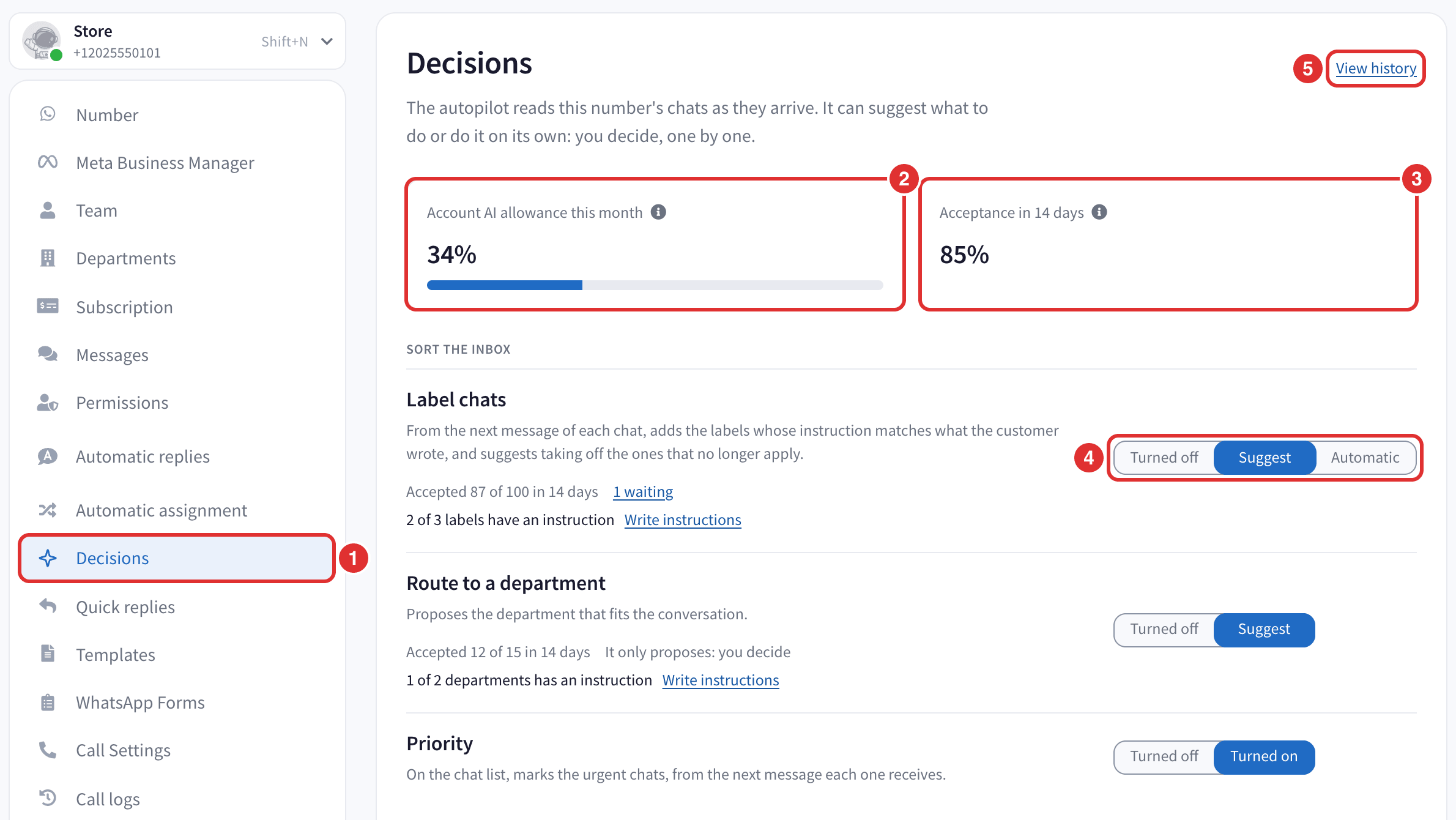
- Decisions, in your number's menu.
- How much of your account's AI allowance is used this month. See the AI allowance.
- Acceptance in 14 days: of the suggestions someone applied or dismissed, how many were applied.
- The mode of each automation. A click saves it: there is no Save button.
- View history opens everything the autopilot did and suggested on this number. See the autopilot history.
Before you start
- The Professional, Business or Enterprise plan. On other plans the page shows an example and how to upgrade. During the free trial the autopilot works in Suggest, on a few chats a day, so you can see it at work before you pay. Automatic comes with your paid plan.
- Who sets it up: anyone who can manage automatic chat assignment, which by default is the owner, the admins and the supervisors. Agents do not see the page, but they see the suggestions in the chats they work on.
- One number at a time. Each WhatsApp number has its own settings, so repeat this on every number you want.
- On a computer. The page, the suggestions and the history are in the web app on a computer. On a phone the inbox works as usual, without them.
How it works
The autopilot only reads one-to-one chats. Groups, channels, broadcast lists and Status updates are never read.
It reads a chat when your customer writes: a quick reading about a minute after the customer's last message, and a closer one about 30 minutes after it. When a chat changes hands, assigned to someone else or resolved, it reads it once more. Messages and notes from your team do not start a reading.
It starts with the next message of each chat. Turning an automation on does not go back over your earlier chats.
It only works with what you gave it: a label or a department is only used once you write it an instruction, as you would explain it to a new teammate. See labels and routing.
Choose what each automation does
In your dashboard, go into your WhatsApp number and click Decisions. Each automation has its own control:
- Turned off. It does nothing.
- Suggest. A suggestion appears in the chat, above the message box, and someone on your team applies it or dismisses it. See suggestions.
- Automatic. It does it on its own when it is sure. When it is less sure, it suggests instead. Only Label chats, Data to the CRM and Close well can be Automatic.
- Turned on. For the automations that only show something or hold something back, and never change a chat: Priority, Awaiting reply queue and Auto-reply guard.
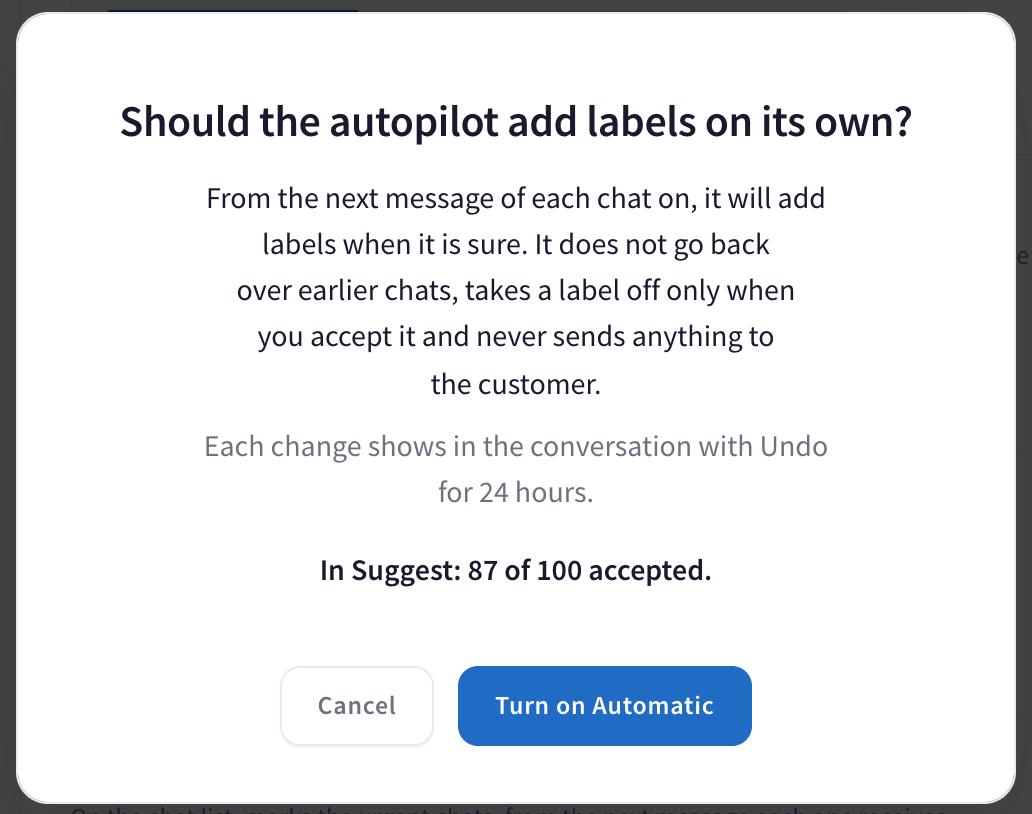
When you choose Automatic, HaberChat asks you first and tells you how many of its suggestions your team accepted so far. Click Turn on Automatic to go ahead, or Cancel. A good way to start is Suggest for a week or two: when your team accepts almost everything, switch to Automatic.
The automations
| Automation | Modes | What it does |
|---|---|---|
| Label chats | Suggest, Automatic | Adds the labels whose instruction matches what the customer wrote. Labels and routing |
| Route to a department | Suggest | Proposes the department that fits the conversation. Labels and routing |
| Priority | Turned on | Marks the urgent chats on the chat list. Priority |
| Next step | Suggest | Proposes one next step: a reply draft, a note, an assignment, a deal or resolving. Next step, deals and handoff notes |
| Close well | Suggest, Automatic | Proposes resolving the chat when the customer says goodbye. Close well |
| Handoff note | Suggest | When a chat changes hands, proposes a summary note. Next step, deals and handoff notes |
| Awaiting reply queue | Turned on | Adds the Awaiting reply filter to the chat list, most urgent first. Priority |
| Data to the CRM | Suggest, Automatic | Fills empty contact fields with what the customer wrote. Contact fields |
| Deal from the chat | Suggest | Proposes opening a deal when the customer shows real interest. Next step, deals and handoff notes |
| Auto-reply guard | Turned on | Holds back a follow-up or busy reply to someone who just said goodbye. Close well |
When an automation needs something before it can work, its card says so in amber with a link to fix it, for example Write instructions or Choose fields.
What it never does
- It never sends a message to your customer. A reply it drafts only goes into the message box, for someone to read and send.
- It never overwrites. It only fills contact fields that are empty.
- It never takes a label off on its own. Even in Automatic, removing a label is a suggestion.
- It does not insist. Once someone dismisses a suggestion in a chat, it does not suggest the same thing there again.
- It is careful with odd messages. If a message pretends to come from your team or gives the autopilot instructions, it only suggests, never acts.
Pause it in one chat
To keep the autopilot out of one conversation, open the chat's menu and click Pause Decisions. The chat shows Autopilot paused: it reads nothing and changes nothing there, and its open suggestions go away. To bring it back, click Resume under the messages, or Resume Decisions in the chat's menu.
Questions
Is this the same as Resolve chats automatically? No. Resolve chats automatically resolves chats after a time without activity, by a rule you set. Close well reads the conversation and proposes resolving it when the customer says goodbye. They work well together.
Why did no suggestion appear in a chat? The autopilot needs a new message from the customer, and it only suggests what it is reasonably sure of. Check also that the automation is not Turned off, that your labels or departments have an instruction, that nobody dismissed the same suggestion in that chat, that the chat is not paused, and that the AI allowance is not spent.
Does it change what my automatic replies or automatic assignment do? Automatic assignment works as before. Automatic replies too, unless you turn on the Auto-reply guard, which holds back a follow-up or busy reply to someone who just said goodbye.
Are my chats used to train AI? No. What the autopilot reads is used only for your own business: nothing is used to train AI, and nothing is used for anything else.
How do I turn it all off? Set every automation to Turned off. What it already did stays as it is, and you can still undo the last 24 hours from the history.
The page says the change could not be saved. Only people who can manage automatic chat assignment can change it. Ask the account owner, or try again in a moment.