

Labels and departments only help if they are on the right chats, and on a busy day nobody has time to put them there. Two automations of Decisions do it for you: Label chats adds the labels that match what the customer wrote, and Route to a department proposes the department the conversation belongs in.
Both only use the labels and departments you wrote an instruction for. The instruction is what tells the autopilot when a label applies or which conversations a department takes, and it is what allows it to use them at all.
1. Write an instruction for each label
- In your dashboard, go into your WhatsApp number and click Labels.
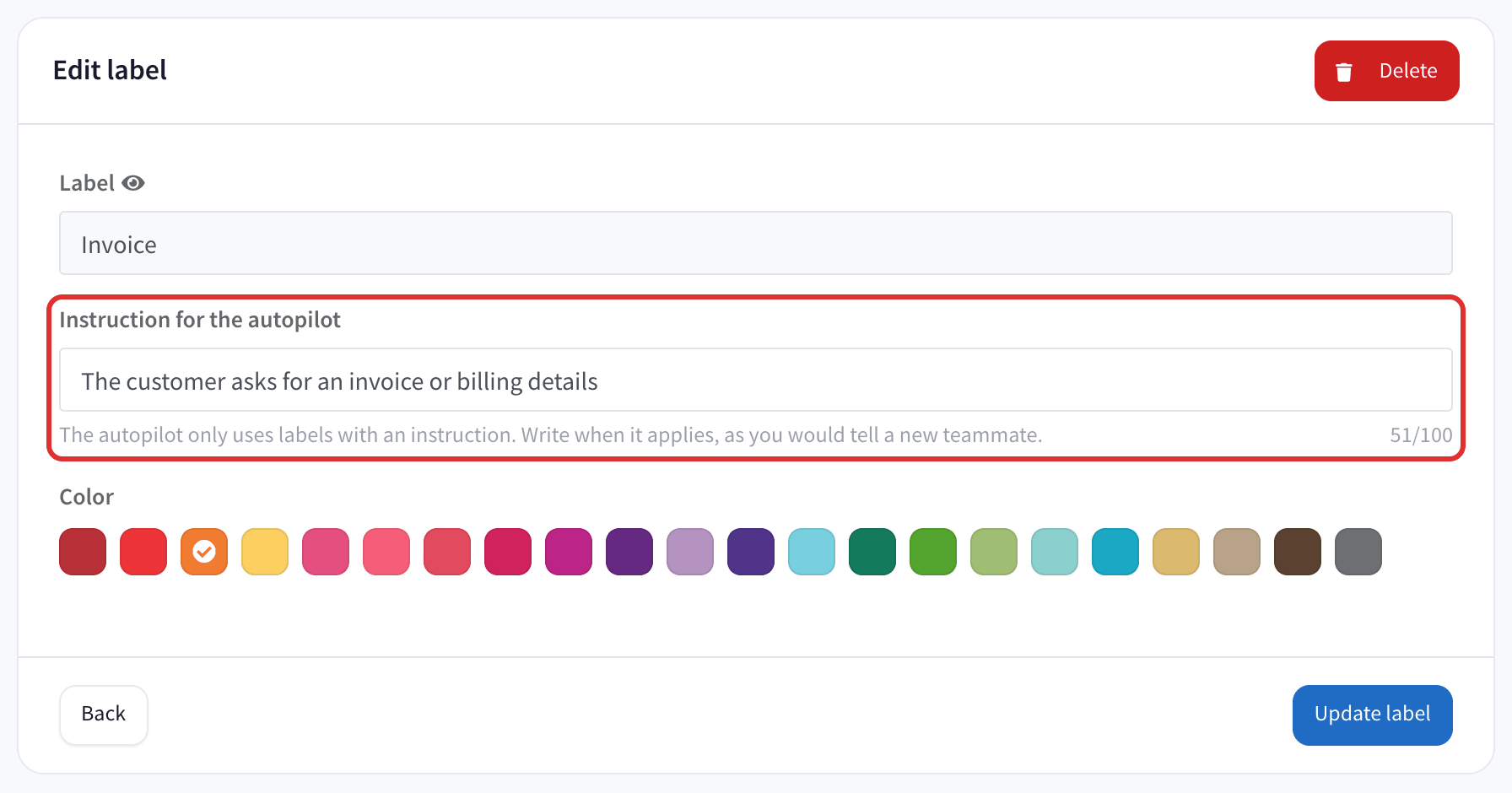
- Edit a label and fill in Instruction for the autopilot, from 2 to 100 characters.
- Write when the label applies, as you would tell a new teammate. For example, for Invoice: "The customer asks for an invoice or billing details".
- Save it. Repeat it for every label you want the autopilot to use.
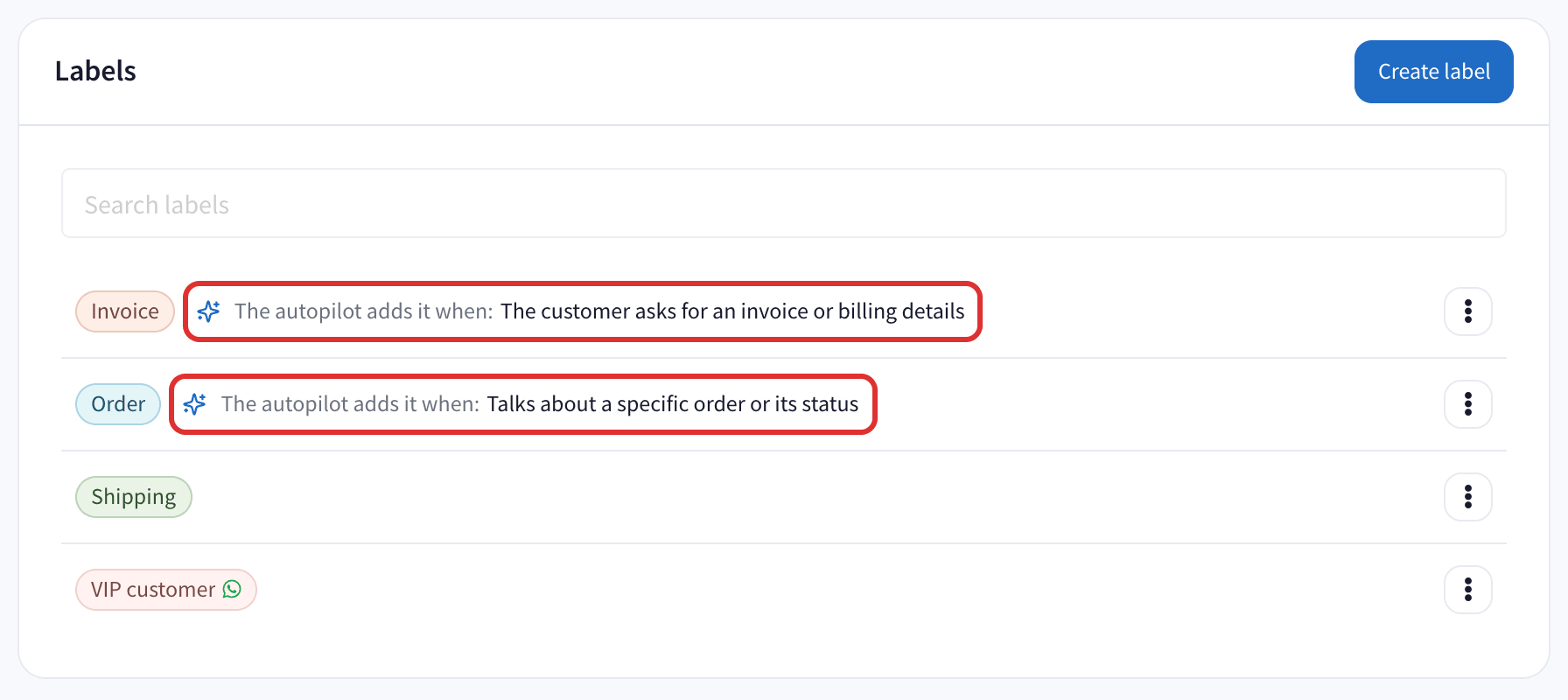
In the list, a label with an instruction says The autopilot adds it when: followed by your instruction. Labels without one are left alone.
On a WhatsApp Business API (Cloud) number, WhatsApp labels cannot be set by the autopilot: create chat labels for it instead. The Label chats card tells you when this is the case.
2. Write an instruction for each department
- Go into your WhatsApp number and click Departments.
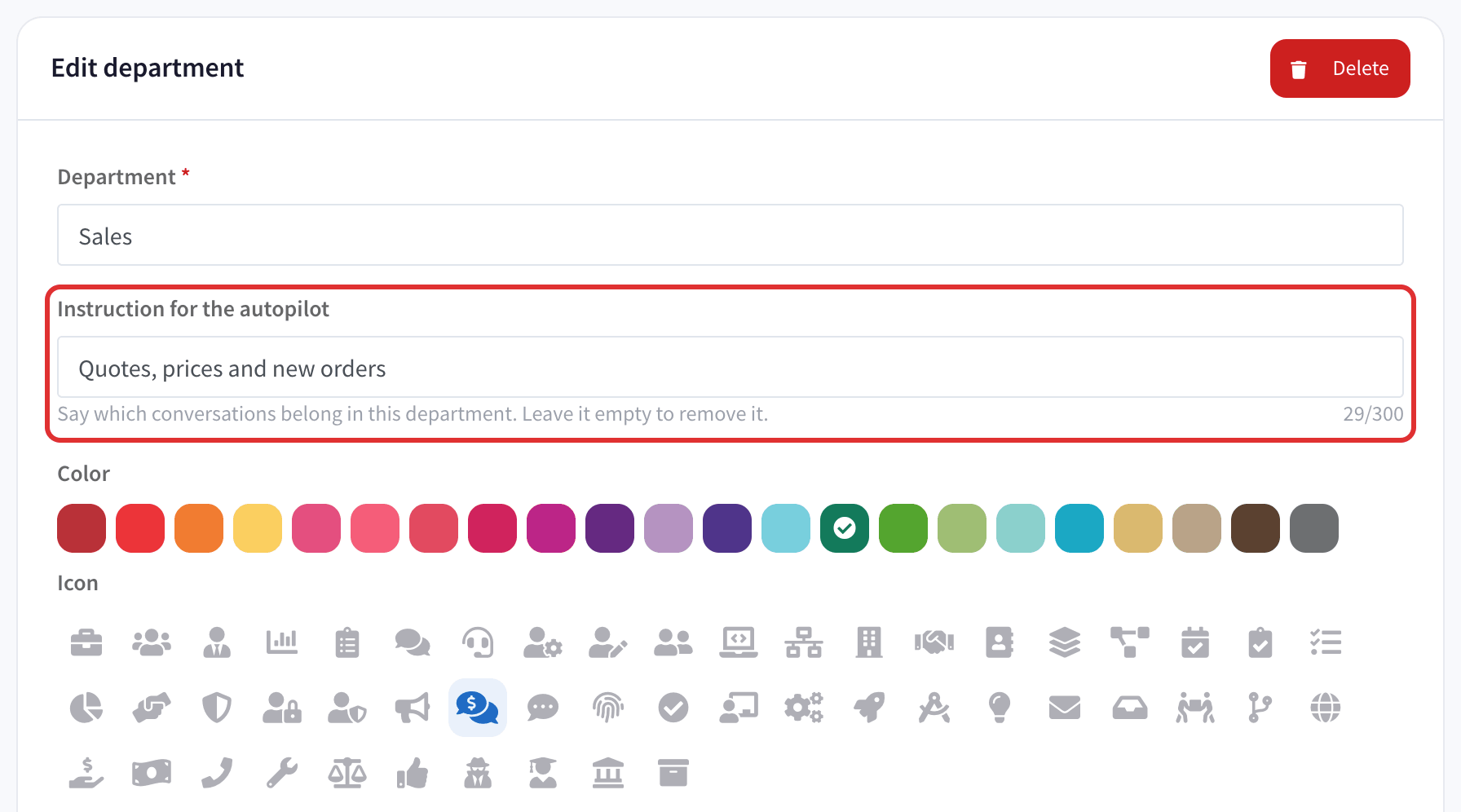
- Edit a department and fill in Instruction for the autopilot, up to 300 characters: which conversations belong there. For example, for Sales: "Quotes, prices and new orders".
- Save it.
Departments you left out of automatic assignment are never proposed.
3. Turn them on
Go into your WhatsApp number, click Decisions, and under Sort the inbox:
- Label chats: Suggest or Automatic.
- Route to a department: Suggest. It only proposes: someone on your team decides.
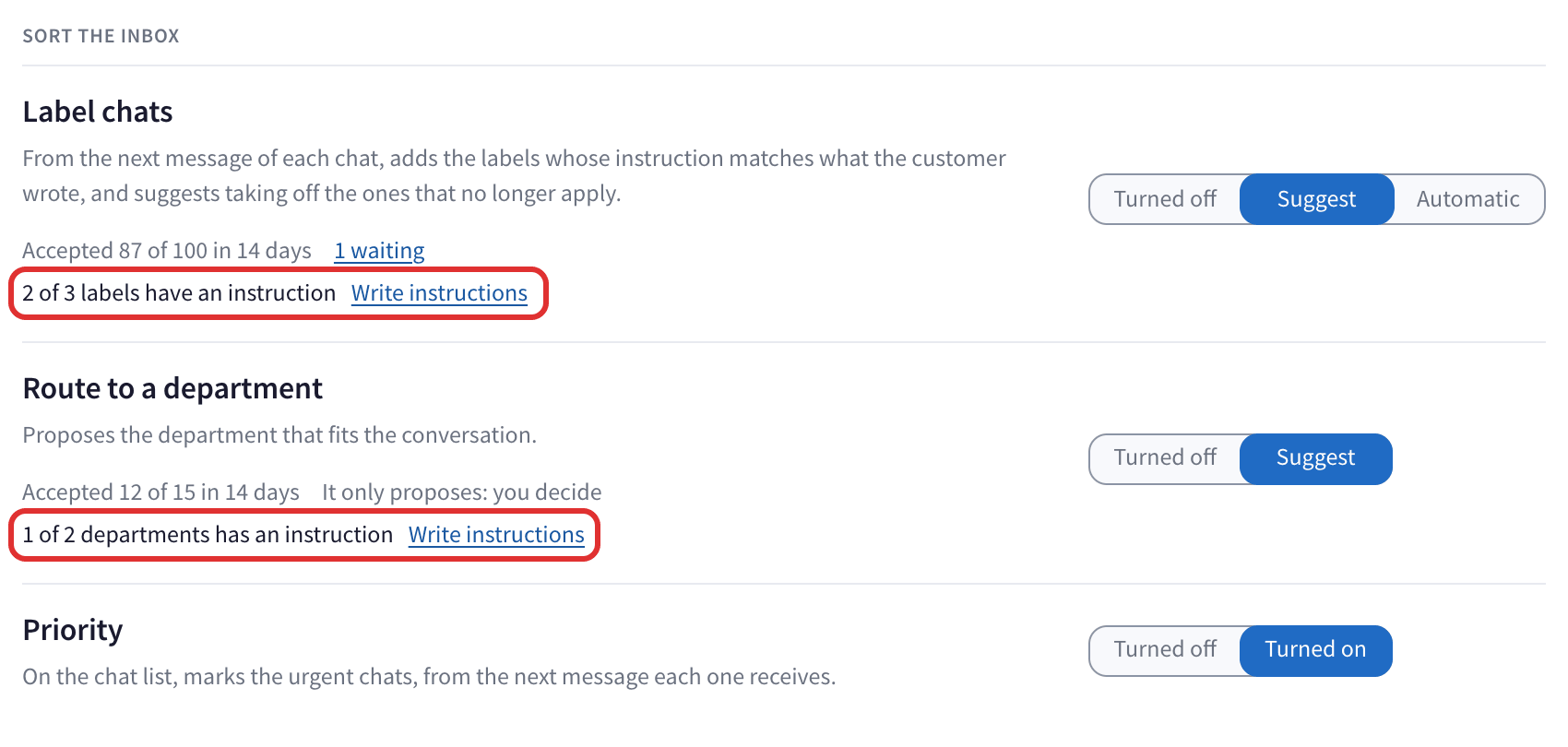
Each card tells you how many of your labels or departments have an instruction, with Write instructions to add the missing ones.
What Label chats does
- It reads the customer's messages about 30 minutes after their last one.
- It adds up to 3 labels each time, and only when the customer's own words match the instruction. Under Show reasoning you see the exact words it relied on.
- In Automatic it adds the label itself when it is sure, and the conversation shows "The autopilot added the label" with Undo for 24 hours.
- It also suggests taking off labels that no longer apply. That is always a suggestion, even in Automatic: click Remove label, or Keep label to leave it.
What Route to a department does
- It reads an open chat that has no department yet, about a minute after the customer's last message.
- It proposes the department that fits, and someone clicks Assign or Dismiss.
- Automatic assignment keeps working as before. If the chat is closing, it does not propose a department.
Questions
My instruction is not being used. Check that it describes what the customer says, not what your team does. "The customer asks about the status of an order" works better than "Order follow-up".
Can it add a label I created on the WhatsApp Business app on my phone? Only where your number syncs WhatsApp labels. On a WhatsApp Business API (Cloud) number, use chat labels.
Does it remove the labels my team added? Never on its own. It can suggest taking one off, and someone decides.
Does routing replace automatic assignment? No. Automatic assignment works as before. Routing proposes the department for chats that have none.